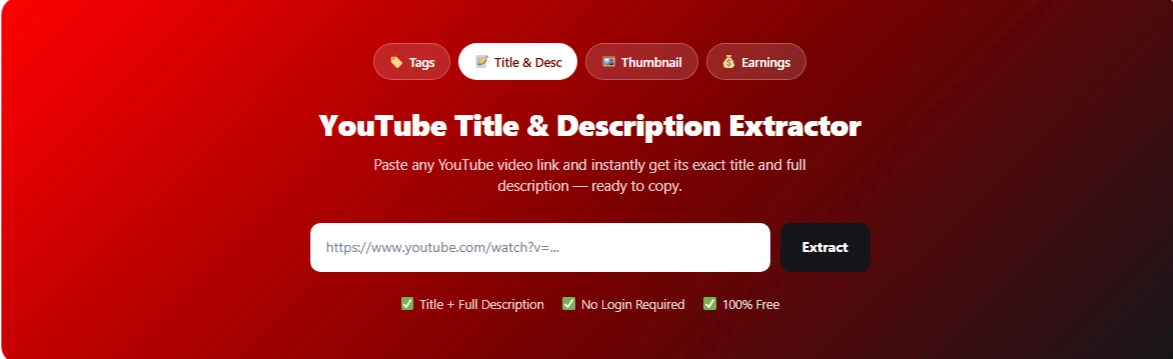
YouTube Title & Description Extractor — Get Any Video Data
Looking at and expanding long YouTube descriptions, scrolling through links, and then manually selecting the specific text you need from the description feels like more hassle than it should be. The YouTube Title and Description Extractor gives you an easy way to pull the title and description straight from any YouTube video URL, so you can read all the information without any trouble or copy what you need.
What can you extract with this tool?
A YouTube page often contains more information than is necessary. This tool focuses solely on the relevant text associated with the video, including the title, description, source URL, and other public details.
This extractor breaks down the key information into clear, separate results, making it easier to understand the data published by the creator.
| Information | Purpose |
|---|---|
| Video title | View or copy the published heading |
| Description | Retrieve the text provided by the creator |
| Video URL | Keep the source connected for your research |
| Available details | Review additional public information |
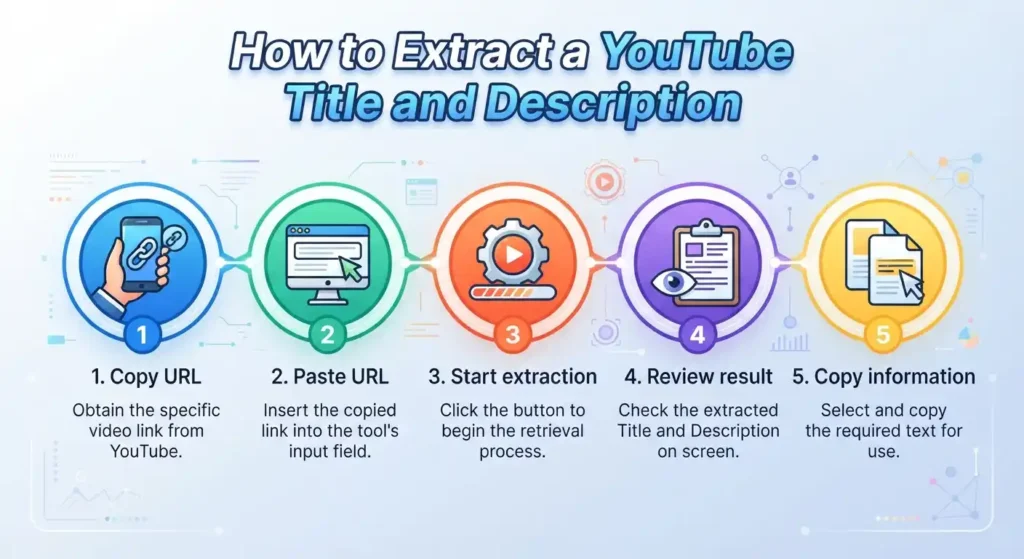
How to Extract the Title and Description from YouTube?
This entire process can be completed in just a few steps:
- Copy the YouTube video URL.
- Paste it into the input field.
- Start the extraction.
- Review the returned information.
- Copy the title or description you need.
When long descriptions make it difficult to select text manually, or when you need to review several videos one after another, this extractor comes in very handy.
Research, Reference, and Content Analysis
For content research, you can see how different creators write titles and descriptions on similar topics. In competitive analysis, this helps you understand the content that’s been published and identify trends in a specific niche. Students and researchers can use this information when taking notes or citing sources, while creators can see how others present their topics.
This tool is also useful when you need the exact text for a legitimate reference without having to keep switching back and forth between video pages.
Note: When researching another creator’s work, use the material you gather solely as a reference, not for republication. Just because something is public doesn’t give you permission to copy the original text written by someone else.
Extracting the Title
The first thing you usually need from a video is its title. For a single page, this is easy, but when you’re reviewing many videos, this task becomes time-consuming.
This extractor displays the published title separately from the rest of the page. This makes it easy to copy the exact wording, record it in research notes, or compare the titles of multiple videos.
The title you get is the one the creator originally published. This should not be considered a title generator or an SEO recommendation.
Working with Long Descriptions
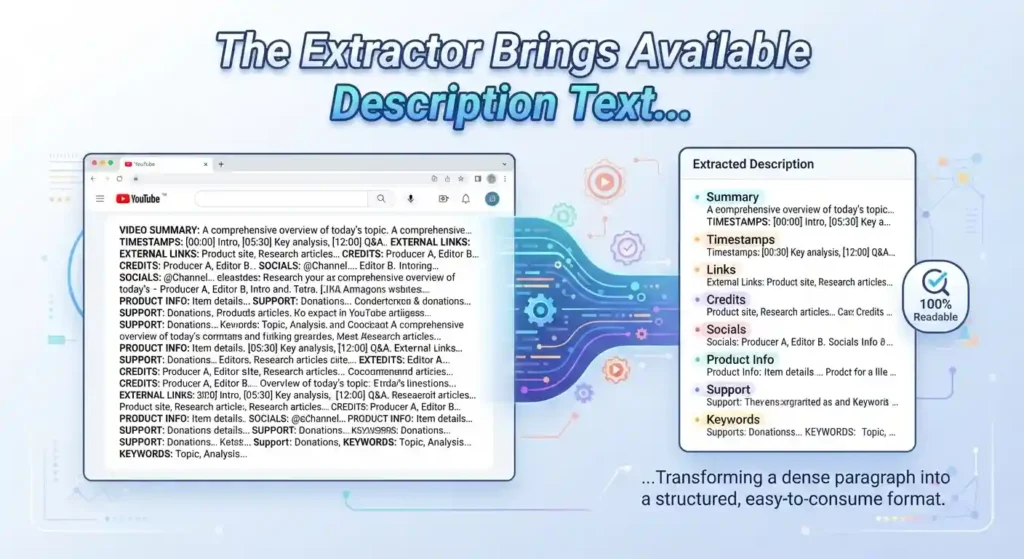
Descriptions can contain much more information than titles. Depending on the creator, they may include summaries, timestamps, external resources, credits, social media profiles, product information, or other supporting elements.
The extractor displays the available description text in a clean, readable result, allowing you to read it without manually expanding a large block of content.
If the description isn’t extracted in full, it could be due to video availability, restrictions, missing information, or blocked access to the page.
YouTube’s official tips for video descriptions
Is This a YouTube Tag Extractor?
No. Tags are different from titles and descriptions.
People may search for terms like YouTube title downloader, description viewer, video details extractor,” or “copy tool” to find similar functionality, but these are just other ways to retrieve information from a video page.
If you need tags, keywords, or other metadata, a tool dedicated to tags is best. Keeping these functions separate also makes it easier to understand which tool provides which information.
Frequently Asked Questions
Use the Tool
When you already have a YouTube link and just need the information associated with it, there’s no need to manually comb through the entire page. Use the YouTube Title and Description